
GitHub Copilot Assisted Permissions Now Generally Available: How AI Helps Control Agent Actions
GitHub has made Copilot assisted permissions generally available across its CLI, app, and Visual Studio Code. An AI model evaluates requests to run commands, access files, or open URLs, allowing clearly safe requests to proceed while others require approval.
Xcademia Team
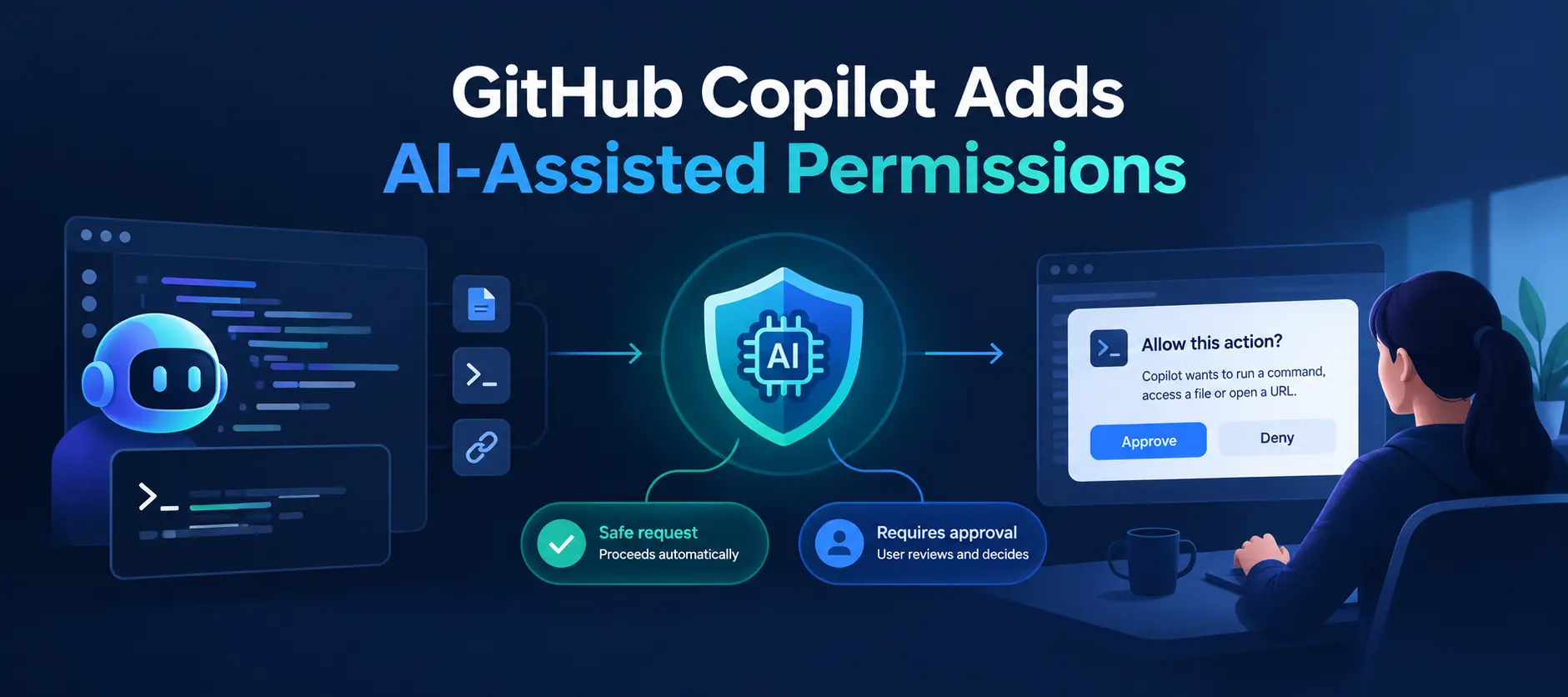
GitHub has made assisted permissions generally available in GitHub Copilot CLI, the GitHub Copilot app, and Visual Studio Code. The feature uses a large language model (LLM) to evaluate certain actions requested by Copilot and determine whether they can proceed automatically or require user approval.
Announced on October 26, 2026, the update introduces an option between manually approving actions and allowing all actions. It is relevant to developers using AI-assisted workflows that interact with local files, execute commands, or open URLs.
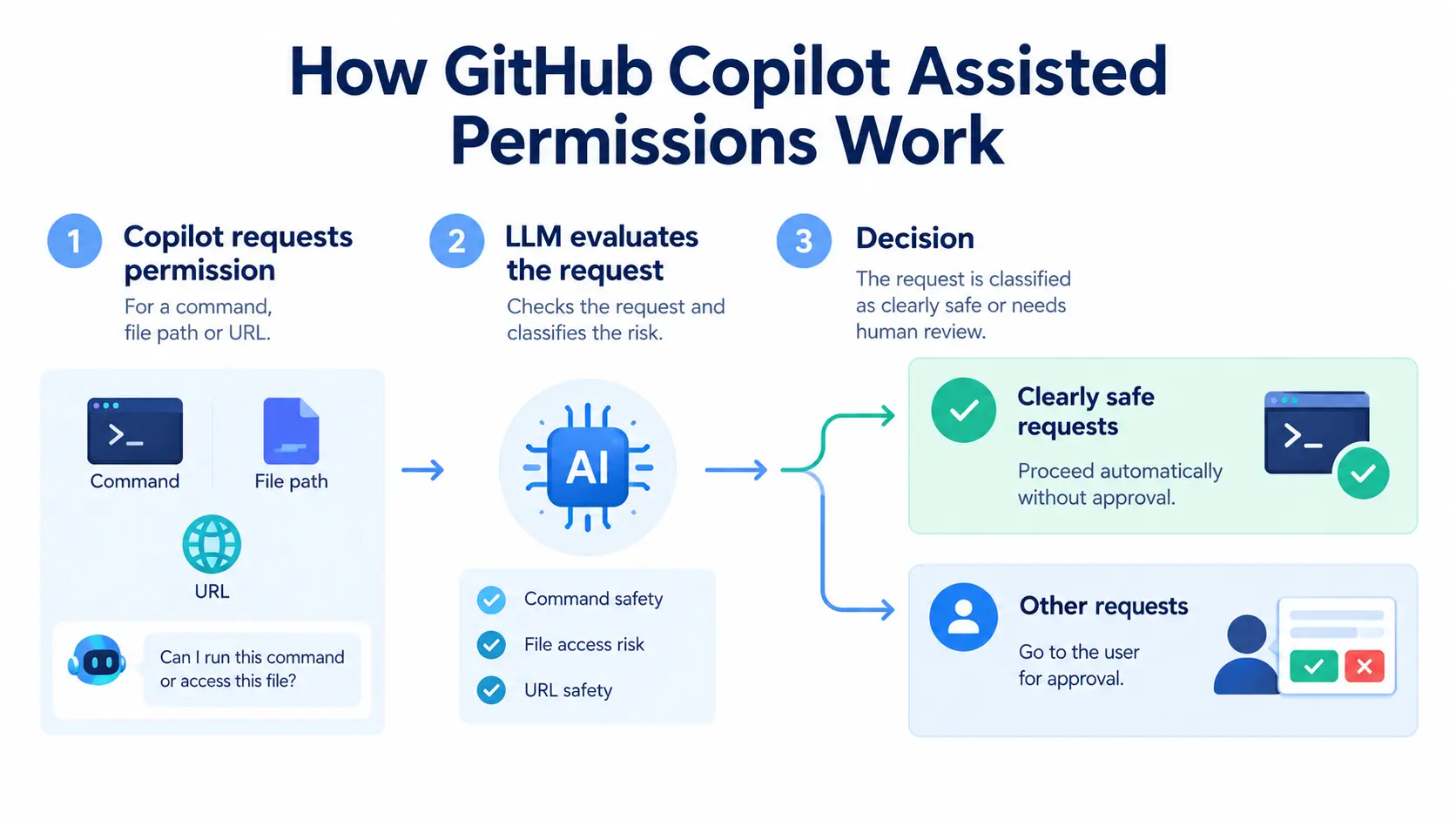
The key distinction is that assisted permissions do not automatically approve every request. Actions classified as clearly safe can proceed without manual approval, while other requests must be approved by the user.
What Are GitHub Copilot Assisted Permissions?
AI coding assistants can do more than suggest code. Depending on the workflow, they may also request permission to execute terminal commands, read or modify files, or access URLs.
These operations can affect a developer's working environment. Requiring manual approval for every action can interrupt a workflow, but allowing all actions without review reduces opportunities for users to intervene.
GitHub Copilot assisted permissions introduce an additional decision step. When Copilot requests permission to perform a supported action, an LLM evaluates the request. If it classifies the request as clearly safe, the action proceeds automatically. Otherwise, the user must approve it.
This gives developers a permission mode intended to balance workflow continuity with human oversight.
Which GitHub Copilot Tools Support the Feature?
GitHub's announcement confirms general availability in three environments. The selection steps differ by tool.
Tool | How to enable assisted permissions |
|---|---|
GitHub Copilot CLI | Run |
GitHub Copilot app | Open the mode picker, select Tool permissions, then choose Assisted. |
Visual Studio Code | Open the permissions picker and select Assisted permissions. |
The feature's availability across these tools means developers can select the assisted mode in the environments covered by the announcement rather than relying exclusively on manual approval or an allow-all option.
Availability does not mean every organization must enable it. Enterprise administrators can manage the available permission modes through policy settings.
How Enterprise Administrators Can Control Permissions
For organizations using GitHub Copilot, permission management is also an administrative concern. Teams may need to establish consistent rules for AI-assisted operations while allowing developers to complete routine work.
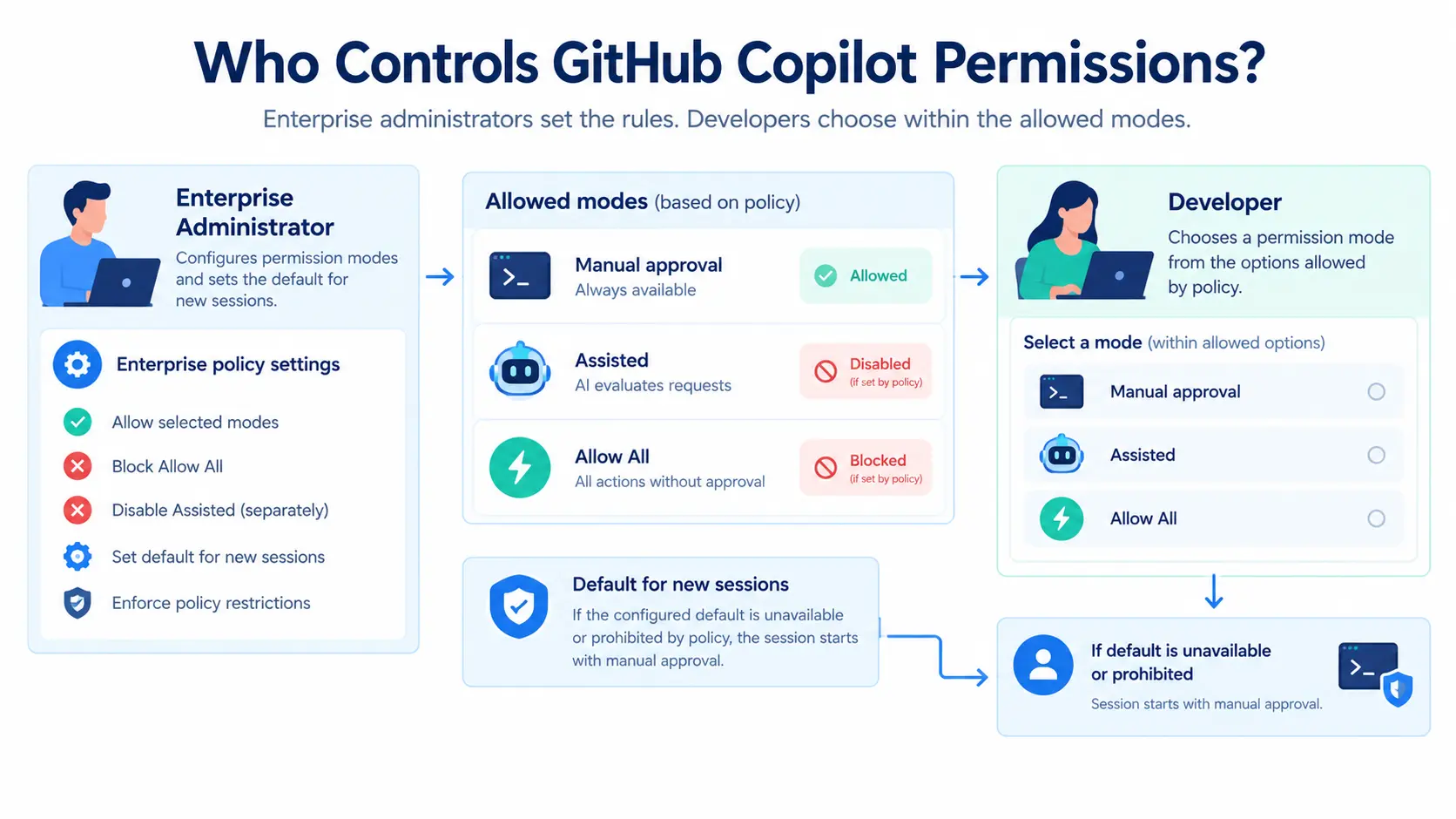
GitHub says enterprise administrators can use enterprise-managed settings to:
Block Allow All: Prevent use of the permission mode that allows all actions while keeping assisted permissions available.
Disable Assisted: Turn off assisted permissions separately.
Set a default: Choose the default permission mode for new sessions.
Respect policy restrictions: Developers can select another mode only when organizational policy permits it.
If the configured default is unavailable or prohibited by policy, a new session starts with manual approval.
These controls let organizations decide how much autonomy Copilot receives without requiring every developer to have the same unrestricted permission options.
Why This Update Matters for AI Coding Workflows
The announcement highlights an ongoing challenge in AI-assisted development: enabling useful automation while retaining control over actions that can affect a developer's environment.
Assisted permissions address this by introducing an AI-based assessment before certain requested operations proceed. Instead of treating every request identically, the feature distinguishes requests classified as clearly safe from those that need human approval.
For developers, this could mean fewer manual interruptions for actions that meet the feature's safety criteria. For organizations, the separate enterprise controls provide a way to restrict available modes and establish defaults for new sessions.
However, the announcement does not establish a measured reduction in approval prompts, a particular accuracy rate for the model's decisions, or a quantified improvement in productivity. Additional details were not disclosed in the announcement.
What Developers and Security Teams Should Consider
General availability makes the feature available for use in the supported tools, but teams should still review how it fits their workflows and policies.
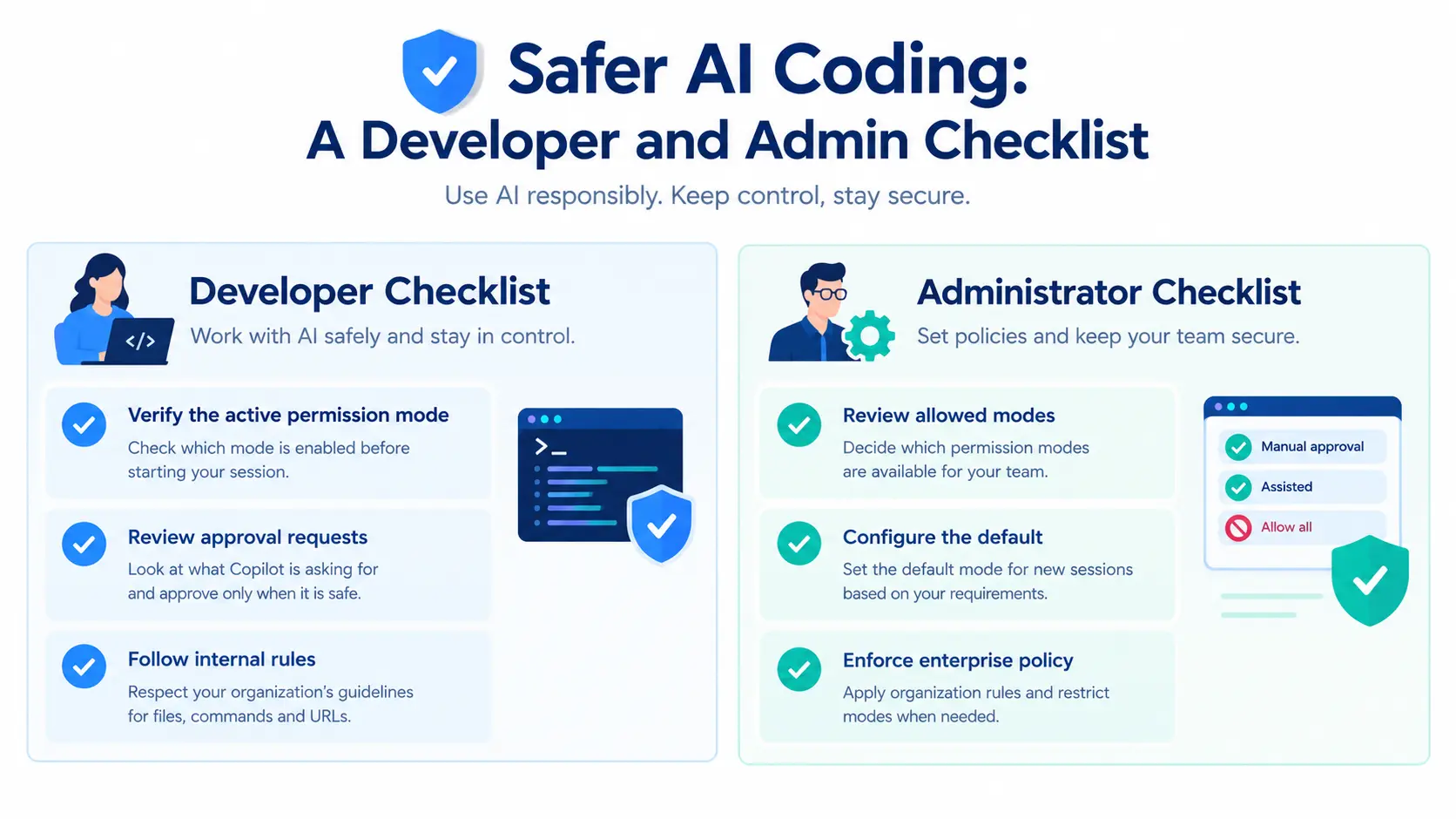
For individual developers:
Check which permission mode is active before starting an AI-assisted session.
Understand the difference between assisted permissions, manual approval, and allowing all actions.
Review requests that require approval before granting permission.
Follow workplace rules for accessing sensitive files, executing commands, and opening URLs.
For enterprise administrators:
Review the available enterprise-managed permission settings.
Decide whether Allow All should be blocked and whether Assisted should remain available.
Select a default permission mode that fits the organization's requirements.
Confirm that session defaults and restrictions align with internal security policies.
These are practical recommendations based on the controls described in the announcement, not additional features claimed by GitHub.
The Bigger Picture: Balancing AI Autonomy With Human Oversight
Industry analysis: As AI coding assistants take on more tasks involving tools and development environments, permission management becomes an important part of deploying them responsibly. The challenge is not only what an AI assistant can do, but also which actions it can take without a person intervening.
GitHub's assisted permissions offer one approach: use an LLM to assess supported requests, automatically allow those classified as clearly safe, and retain user approval for others. Enterprise-managed settings add an administrative layer for controlling which permission modes are available.
The feature should not be interpreted as a guarantee that every permitted action is harmless. Organizations should continue to apply appropriate access controls, review sensitive operations, and test AI-assisted workflows against their own requirements.
GitHub's announcement does not disclose a numerical measure of the feature's decision accuracy or its impact on development speed. The company did not provide specific information about these areas.
Conclusion
GitHub Copilot assisted permissions are now generally available in the Copilot CLI, Copilot app, and Visual Studio Code. The feature uses an LLM to evaluate requests for commands, file system access, and URLs, allowing requests classified as clearly safe to proceed while requiring approval for others.
For developers, it offers another way to manage the balance between automation and manual oversight. For enterprises, the associated controls provide options for restricting permission modes and setting defaults for new sessions.
Teams considering adoption should review the available settings and ensure their use aligns with internal security policies.
Source: GitHub Changelog
About the Author