Git & GitHub for Beginners: A Complete Guide to Version Control
Learn Git and GitHub from scratch with this beginner-friendly guide. Discover how version control works, create repositories, make commits, use branches, merge changes, and collaborate through pull requests. Build Git skills and understand the workflow used by modern software developers.
Introduction
Imagine working on a website for several weeks. You update the homepage, change the navigation, add authentication, modify the database, and fix a few bugs.
Then something breaks.
You remember that the project worked perfectly two days ago - but you have no idea exactly what changed.
This is one of the problems version control solves.
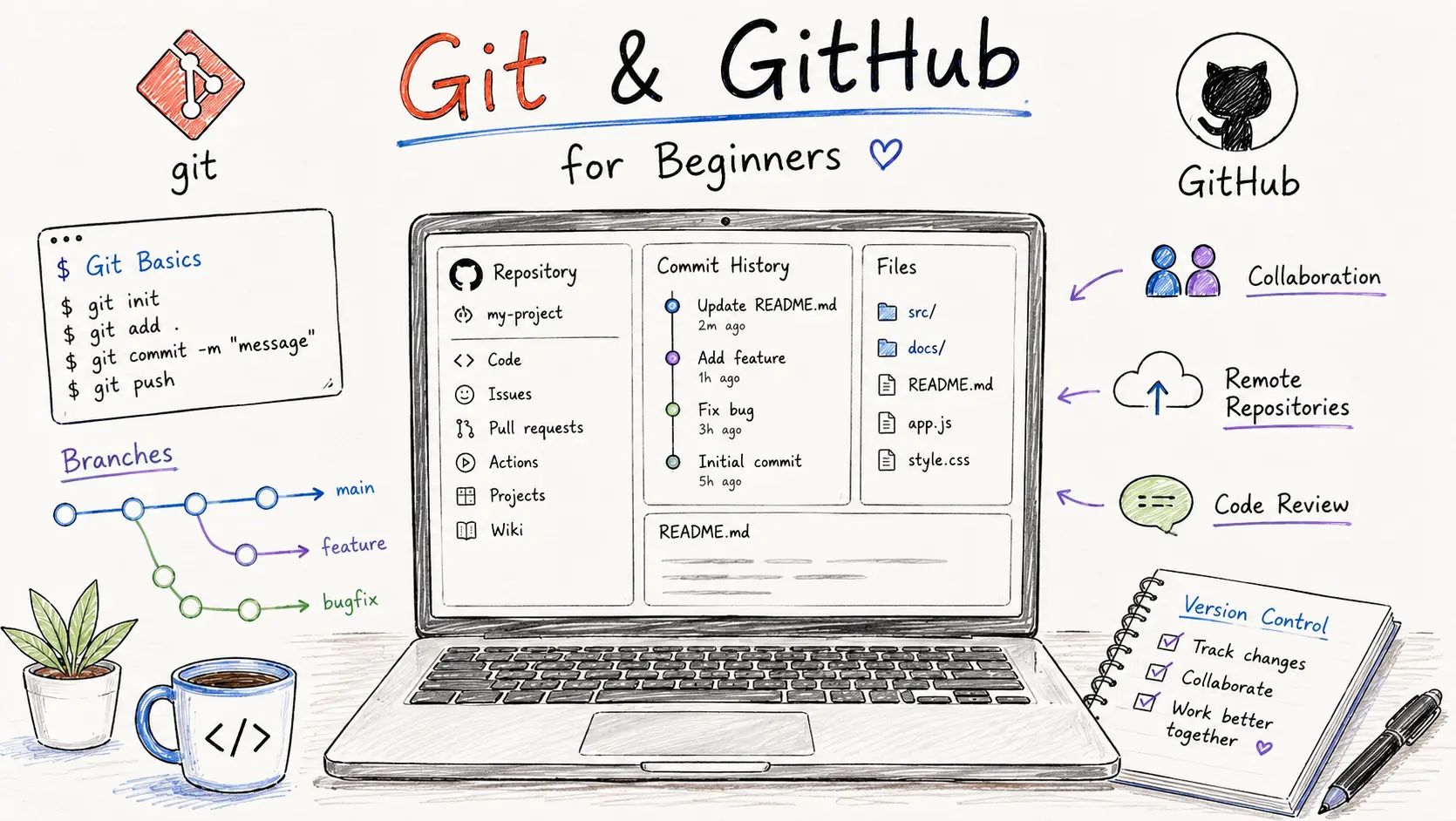
Version control allows developers to track changes to files, maintain project history, collaborate with other developers, and return to an earlier working version when necessary. Git is the most widely used version control system, while GitHub provides an online platform for hosting Git repositories and collaborating around them.
For beginners, Git and GitHub can initially seem complicated because of terms such as repository, commit, branch, merge, push, pull, and pull request.
The good news is that you don't need to learn everything at once.
Once you understand how the basic workflow fits together, Git becomes one of the most useful tools in your development toolkit.
In this guide, we'll explain Git and GitHub from the ground up.
What Is Version Control?
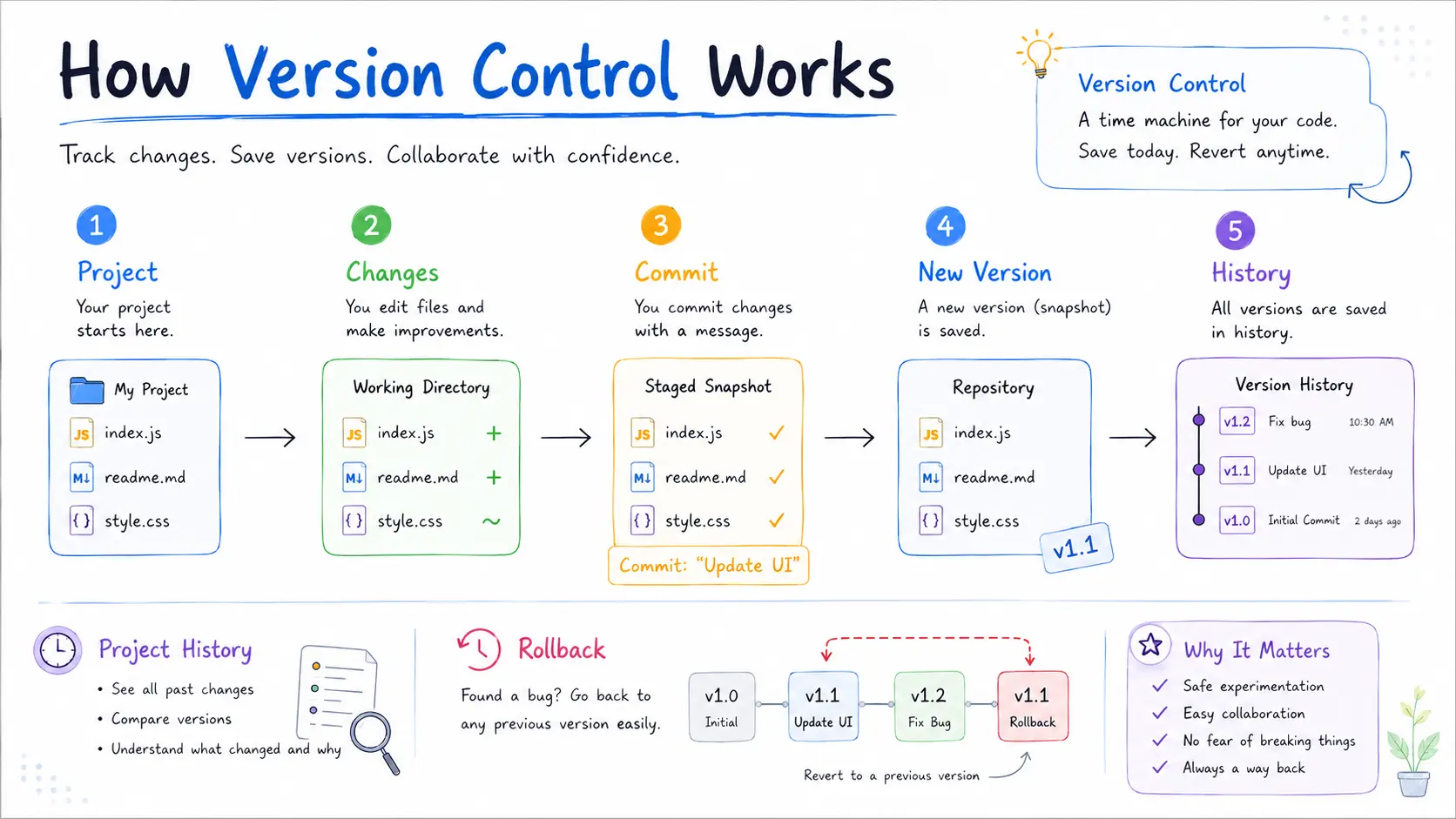
Version control is a system for recording and managing changes to files over time.
Although it is especially important in software development, the basic idea is simple.
Think about editing a document.
You might create:
website-final.docxwebsite-final-v2.docxwebsite-final-v3.docxwebsite-final-new.docxwebsite-final-new-2.docx
Eventually, it becomes difficult to know which version is correct.
Version control replaces this messy approach with a structured history of changes.
Instead of manually creating multiple copies of a project, developers can use version control to record:
What changed
Who made the change
When it was made
Why it was made
Which version existed previously
This makes it much easier to understand and manage a project's history.
Why Is Version Control Important?
Version control is useful for both individual developers and development teams.
1. Track Changes
You can see how your project has changed over time.
2. Recover Previous Versions
If a new change introduces a problem, you can inspect or restore an earlier version.
3. Collaborate With Developers
Multiple developers can work on the same project while maintaining a record of their individual changes.
4. Experiment Safely
Branches allow developers to work on new features without immediately changing the main codebase.
5. Review Code
Teams can review proposed changes before incorporating them into the main project.
6. Maintain Project History
A well-maintained Git repository provides a useful record of how a project evolved.
This is particularly valuable for professional software development teams.
What Is Git?
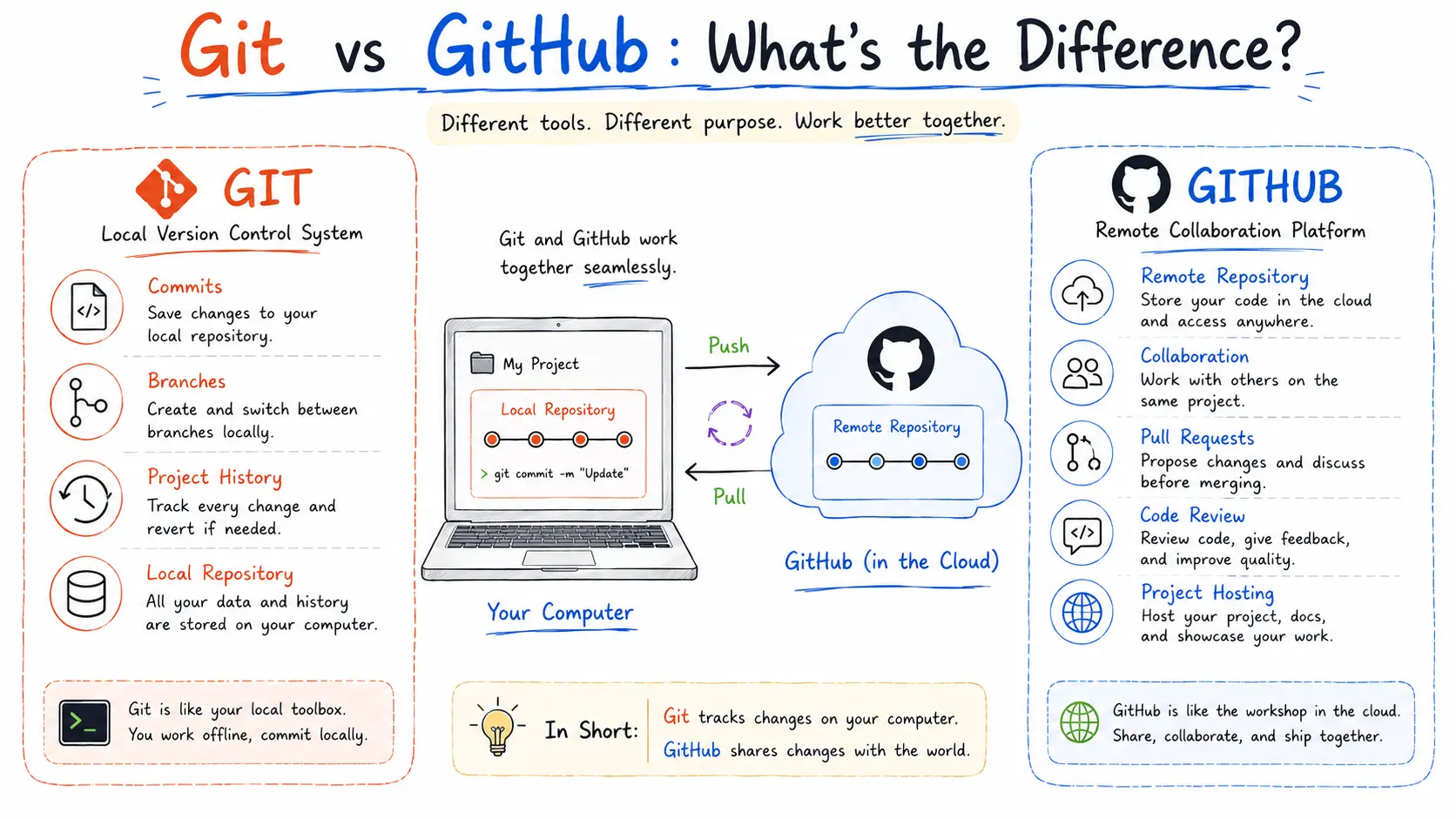
Git is a distributed version control system used to track changes in software projects.
Git runs on your computer and maintains the history of your project.
A useful way to think about Git is as a timeline for your code.
You make changes → save a snapshot → continue developing → save another snapshot.
These snapshots are called commits.
Git also allows you to create separate branches, compare changes, merge work, and return to previous points in your project's history.
Git's distributed architecture means developers can maintain a complete repository history locally rather than depending entirely on a central server.
What Is GitHub?
GitHub is an online platform built around Git.
While Git manages version history locally, GitHub allows developers to host repositories online and collaborate with other people.
GitHub provides features such as:
Remote repositories
Pull requests
Code reviews
Issues
Project collaboration
GitHub Actions
Open-source contribution
A simple way to remember the difference is:
Git = version control system
GitHub = online platform for Git-based collaboration
You can use Git without GitHub, but GitHub makes it much easier to share and collaborate on Git repositories.
Git vs GitHub: What's the Difference?
Git | GitHub |
|---|---|
Version control system | Online development platform |
Runs locally | Primarily cloud-based |
Tracks project history | Hosts Git repositories |
Creates commits | Provides pull requests |
Creates branches | Supports collaborative workflows |
Can work without internet | Used for online collaboration |
Open-source software | GitHub platform |
How Git Works
A basic Git workflow can be understood through three areas:
Working Directory → Staging Area → Repository
Working Directory
This is where you actually edit your files.
For example, you might modify:
index.html
styles.css
app.js
Staging Area
After making changes, you select the changes you want to include in your next commit.
You typically do this using:
git addRepository
Once your changes are staged, you create a commit.
git commitThe commit records a snapshot of the selected changes in your project's Git history.
A simple workflow looks like:
Edit Files
   ↓
git status
   ↓
git add
   ↓
git commit
   ↓
Project History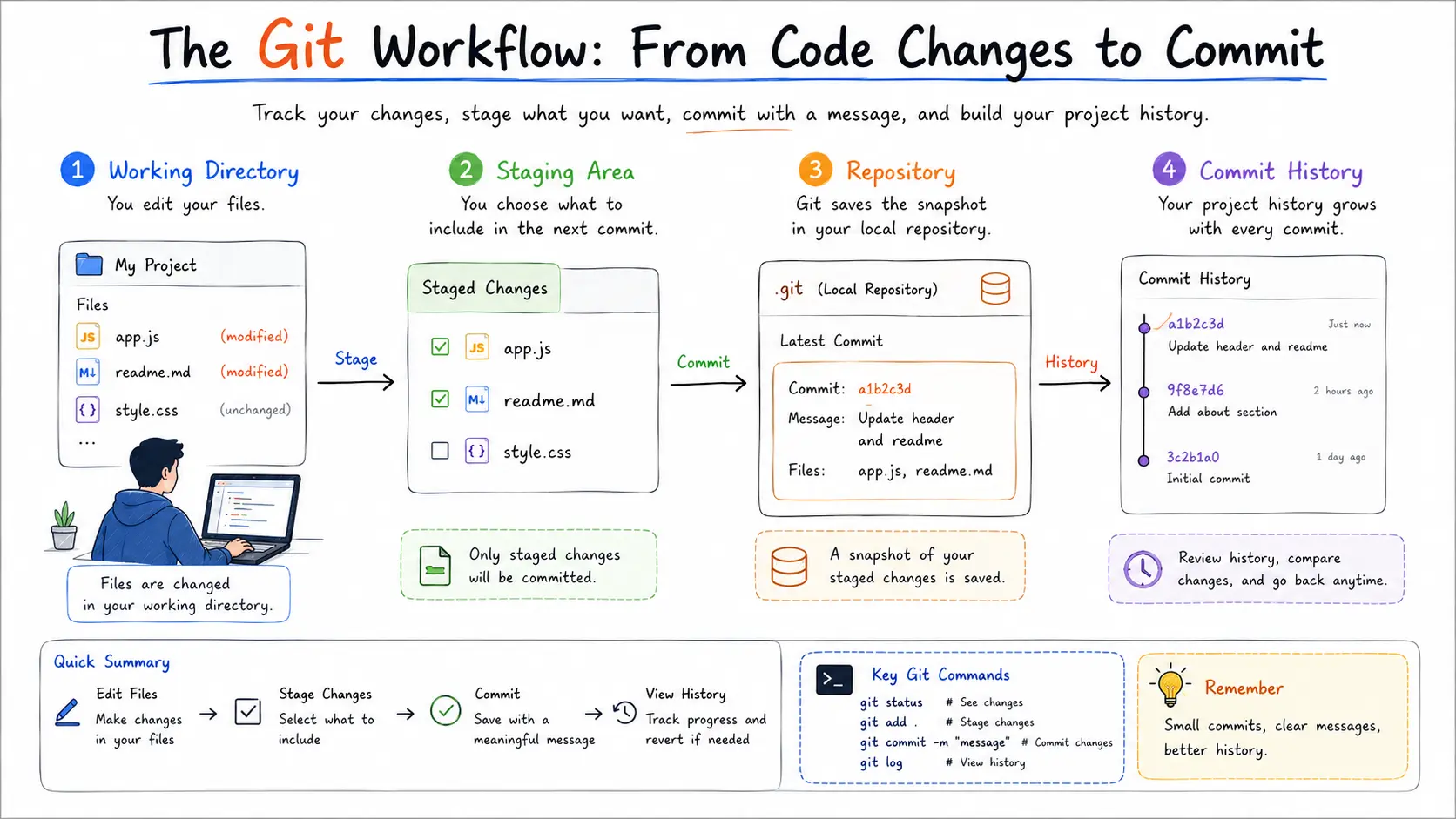
Installing Git
To begin using Git, install it on your computer.
After installation, verify that Git is available:
git --versionYou should see the installed Git version.
You can then configure your identity:
git config --global user.name "Your Name"And:
git config --global user.email "you@example.com"This information is associated with the commits you create.
Creating Your First Git Repository
Suppose you already have a project folder.
Open your terminal inside that folder and run:
git initGit will initialize a repository for the project.
You can then check its status:
git statusThis command is one of the most useful Git commands for beginners because it shows information about modified, staged, and untracked files.
Your First Git Commit
Let's say you have created a simple website.
First, check the project:
git statusThen stage your files:
git add .Create a commit:
git commit -m "Create initial website"Your project now has a recorded point in its Git history.
A good commit message should explain what the commit accomplished.
For example:
git commit -m "Add user login form"is more useful than:
git commit -m "changes"Clear commit messages become increasingly valuable as projects grow.
What Is a Git Repository?
A repository, commonly called a repo, is a project managed by Git.
It contains the files and Git history associated with the project.
A repository can exist:
On your local computer
On a remote platform such as GitHub
In both locations
For example:
my-portfolio/
│
├── index.html
├── style.css
├── script.js
└── .git/
The .git directory contains information Git uses to manage the repository.
Connecting Git to GitHub
After creating a repository on GitHub, you can connect your local Git repository to it.
For example:
git remote add origin https://github.com/username/project.gitYou can check the configured remote with:
git remote -vYou can then push your local commits to GitHub:
git push -u origin mainThe exact branch name may differ depending on your project configuration.
What Does Git Push Mean?
Push means sending your local commits to a remote repository.
For example:
git pushThink of it as:
My computer → GitHub
This allows your remote repository to receive the commits you've created locally.
What Is Git Clone?
If a project already exists on GitHub, you don't need to manually recreate all of its files.
You can clone the repository:
git clone https://github.com/username/project.gitCloning creates a local copy of the repository that you can work with on your computer.
A common beginner workflow is:
GitHub Repository
    ↓
git clone
    ↓
Local Project
    ↓
Make Changes
    ↓
Commit
    ↓
git push
    ↓
GitHub
Understanding Git Branches
Branches are one of Git's most powerful concepts.
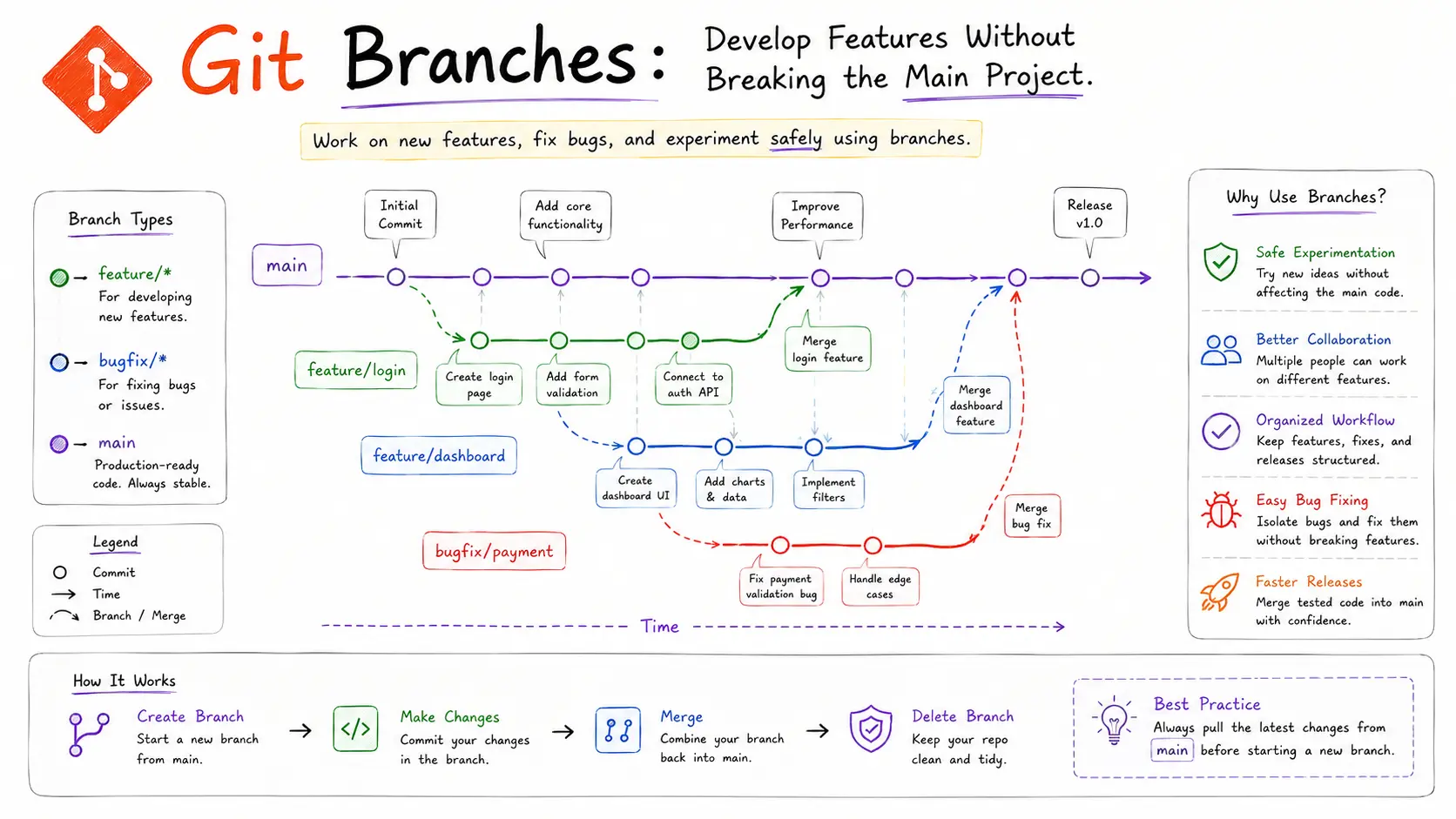
A branch allows you to create an independent line of development.
Suppose the main project is stable, but you want to add a new login system.
Instead of immediately changing the main branch, you can create a feature branch:
git switch -c feature/loginYou can now work on the login feature separately.
For example:
main
 │
 ├── feature/login
 │
 ├── feature/dashboard
 │
 └── bugfix/payment-error
Different branches can represent different pieces of work.
Why Use Feature Branches?
Feature branches help teams isolate changes.
For example:
main
  ↓
feature/user-authentication
  ↓
Development
  ↓
Testing
  ↓
Code Review
  ↓
Merge
  ↓
main
This approach helps developers avoid mixing unfinished work with stable code.
Common branch naming patterns include:
feature/login
feature/payment-system
bugfix/navbar
bugfix/api-error
hotfix/security-update
The exact branching strategy depends on the team's workflow.
What Is Git Merge?
After completing work on a branch, you may want to combine it with another branch.
This is called merging.
For example:
git switch main
git merge feature/login
Git attempts to combine the histories of the two branches.
If the changes do not conflict, Git can complete the merge automatically.
What Is a Merge Conflict?
A merge conflict occurs when Git cannot automatically determine how two sets of changes should be combined.
For example, two developers might modify the same section of a file differently.
Git may mark the conflict so the developer can decide which version should remain - or whether the changes should be combined.
A typical resolution workflow is:
Merge
  ↓
Conflict detected
  ↓
Review conflicting files
  ↓
Choose or combine changes
  ↓
Save files
  ↓
git add
  ↓
git commit
Merge conflicts are a normal part of collaborative development.
Learning how to resolve them is an important Git skill.
What Is a Pull Request?
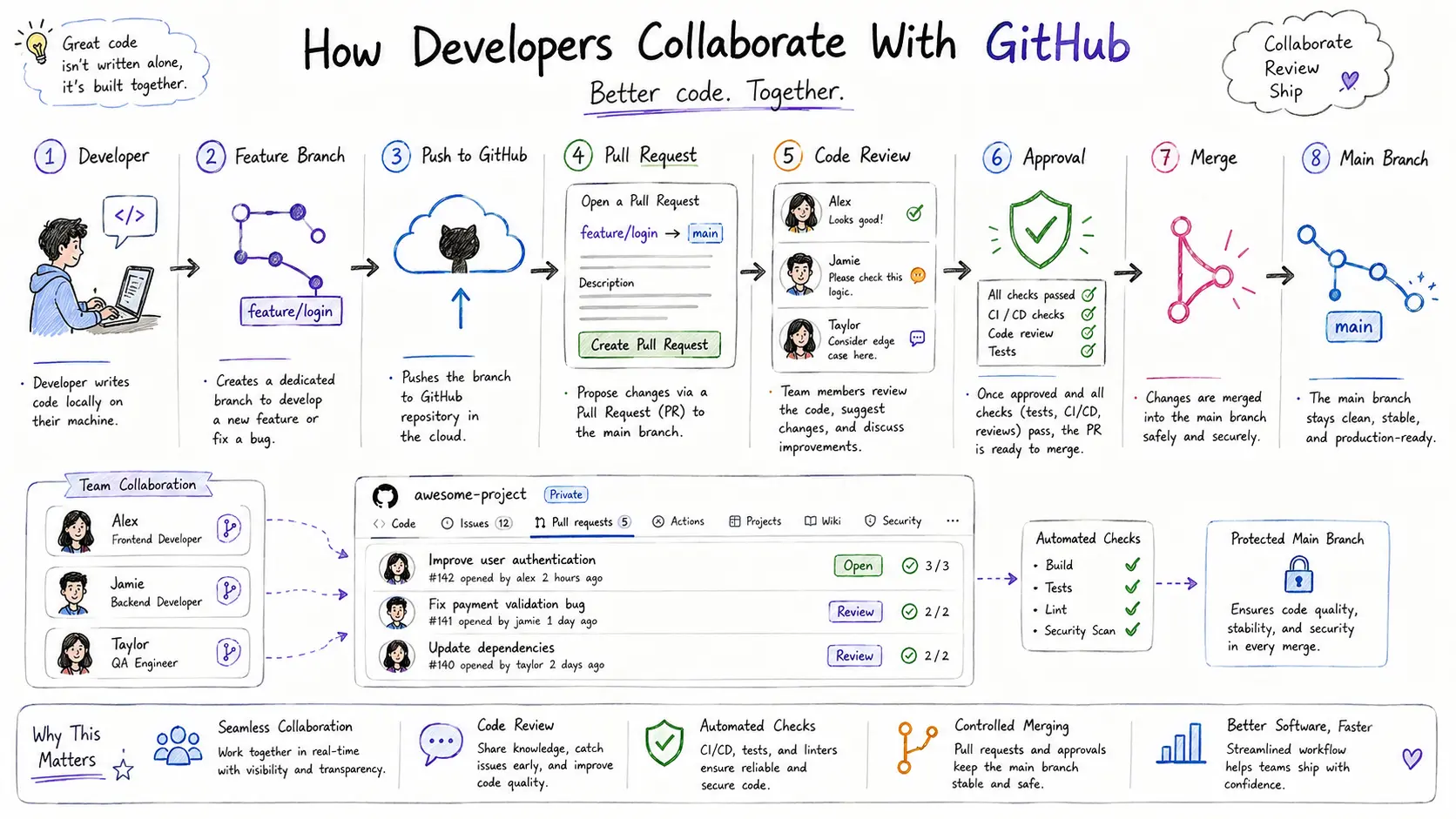
A pull request (PR) is a proposal to merge changes into another branch, commonly the main branch.
For example:
Developer
   ↓
Feature Branch
   ↓
Push to GitHub
   ↓
Pull Request
   ↓
Code Review
   ↓
Approval
   ↓
Merge
   ↓
Main Branch
Pull requests make collaborative development more structured.
Team members can:
Review code
Discuss changes
Request modifications
Run automated checks
Approve contributions
Merge completed work
GitHub's beginner resources similarly emphasize repositories and pull requests as foundational concepts for collaborative development.
What Is Forking?
A fork is your own copy of another GitHub repository under your GitHub account.
Forking is particularly common in open-source development.
For example:
Original Repository
        ↓
      Fork
        ↓
Your GitHub Account
        ↓
Clone
        ↓
Make Changes
        ↓
Push
        ↓
Pull Request
This allows you to propose improvements to projects you do not directly control.
Essential Git Commands for Beginners
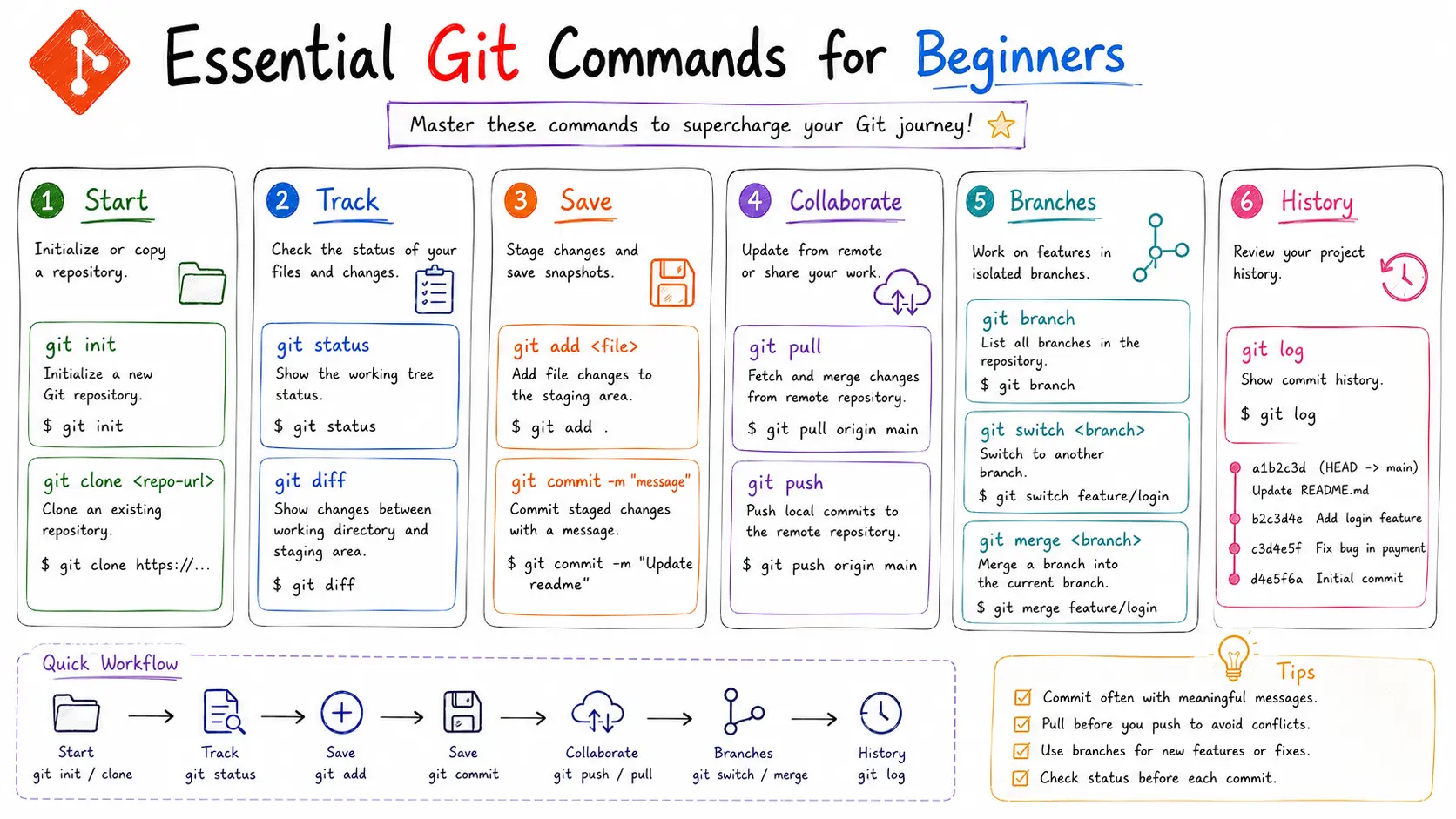
Here is a practical Git command cheat sheet.
Command | Purpose |
|---|---|
| Create a Git repository |
| Copy a remote repository locally |
| View repository status |
| Stage changes |
| Save a snapshot |
| View commit history |
| View/manage branches |
| Switch branches |
| Combine branches |
| Retrieve remote changes |
| Upload local commits |
| View remote repositories |
| Temporarily store uncommitted changes |
These commands cover a large portion of the basic Git workflow.
A Practical Git Workflow
For a beginner developer, a typical workflow might look like this:
Step 1: Get the Project
git clone <repository-url>Step 2: Enter the Project
cd project-nameStep 3: Create a Branch
git switch -c feature/contact-formStep 4: Make Changes
Edit your code using your preferred editor.
Step 5: Check Your Changes
git statusStep 6: Stage Changes
git add .Step 7: Create a Commit
git commit -m "Add contact form"Step 8: Push the Branch
git push -u origin feature/contact-formStep 9: Open a Pull Request
Create a pull request on GitHub.
Step 10: Review and Merge
After review and successful checks, the branch can be merged according to the team's workflow.
Git Stash: Temporarily Save Your Work
Sometimes you're working on one task and suddenly need to switch to another branch.
Your current changes may not be ready for a commit.
That's where git stash can help.
git stashYour uncommitted changes are temporarily stored.
Later, you can restore them:
git stash popThis is especially useful when you need to quickly change context without creating an unnecessary commit.
What Is Git Rebase?
Rebase is another way to integrate changes between branches.
For example:
git switch feature/login
git rebase main
Instead of creating a traditional merge commit in many cases, rebase moves your branch's commits onto a newer base.
Rebase can help create a cleaner-looking project history, but beginners should understand ordinary branching and merging before using it extensively.
Important: rebasing shared branches requires care because it can rewrite commit history.
Git and Team Collaboration
Git becomes especially valuable when multiple developers work together.
Imagine a team with:
Frontend developer
Backend developer
UI/UX developer
QA engineer
Each developer can work on appropriate branches while the team uses GitHub to coordinate changes.
A simplified workflow might look like:
                 GitHub
                    │
        ┌───────────┼───────────┐
        ↓           ↓           ↓
    Frontend     Backend       QA
     Branch       Branch      Testing
        │           │
        └──────┬────┘
               ↓
        Pull Requests
               ↓
          Code Review
               ↓
             Merge
               ↓
             main
This workflow helps teams organize development without requiring everyone to modify the same branch simultaneously.
Common Git Mistakes Beginners Make
Learning Git is not just about memorizing commands.
It's also about developing good habits.
1. Making Huge Commits
Avoid putting dozens of unrelated changes into one commit.
Instead, create focused commits.
2. Using Vague Commit Messages
Avoid:
git commit -m "update"Prefer:
git commit -m "Fix mobile navigation menu"3. Working Directly on Main
For collaborative projects, feature branches can provide a safer workflow.
4. Forgetting to Pull
Before starting work, make sure your local branch is reasonably up to date with the team's remote changes.
5. Ignoring Merge Conflicts
Don't randomly delete conflict markers.
Understand both sets of changes and resolve the conflict intentionally.
6. Committing Sensitive Information
Never commit passwords, API keys, private credentials, or environment secrets.
Use appropriate environment-variable and secret-management practices instead.
Git Best Practices for New Developers
If you're learning Git, develop these habits early:
Write Meaningful Commits
Each commit should represent a clear piece of work.
Create Focused Branches
A branch should generally have a clear purpose.
Review Changes Before Committing
Use:
git statusand:
git diffto inspect your work.
Pull Regularly
When collaborating, regularly synchronize with the remote repository according to your team's workflow.
Keep Secrets Out of Git
Use .gitignore and proper secret-management practices.
Learn to Read Git History
Commands such as:
git logcan help you understand how a project evolved.
Git vs GitHub vs GitHub Desktop
Beginners sometimes confuse Git with GitHub Desktop.
Here's the distinction:
Git
The underlying version control system.
GitHub
The online platform for hosting and collaborating around Git repositories.
GitHub Desktop
A graphical application that provides a visual interface for many Git and GitHub workflows.
Developers can use Git from the command line, graphical tools, IDE integrations, or a combination of these approaches. GitHub's documentation also provides beginner workflows through GitHub Desktop and command-line Git.
Why Git and GitHub Matter for Your Development Career
Git isn't simply another tool to memorize.
It is part of the everyday workflow of modern software development.
Whether you're building:
Websites
Mobile applications
APIs
SaaS platforms
Data applications
Cloud infrastructure
AI applications
Open-source projects
you are likely to encounter Git-based workflows.
For students and aspiring developers, learning Git early also makes it easier to:
Build a professional portfolio
Publish projects
Collaborate with developers
Contribute to open source
Demonstrate coding experience
Understand professional development workflows
GitHub can also serve as a public showcase for selected projects and contributions.
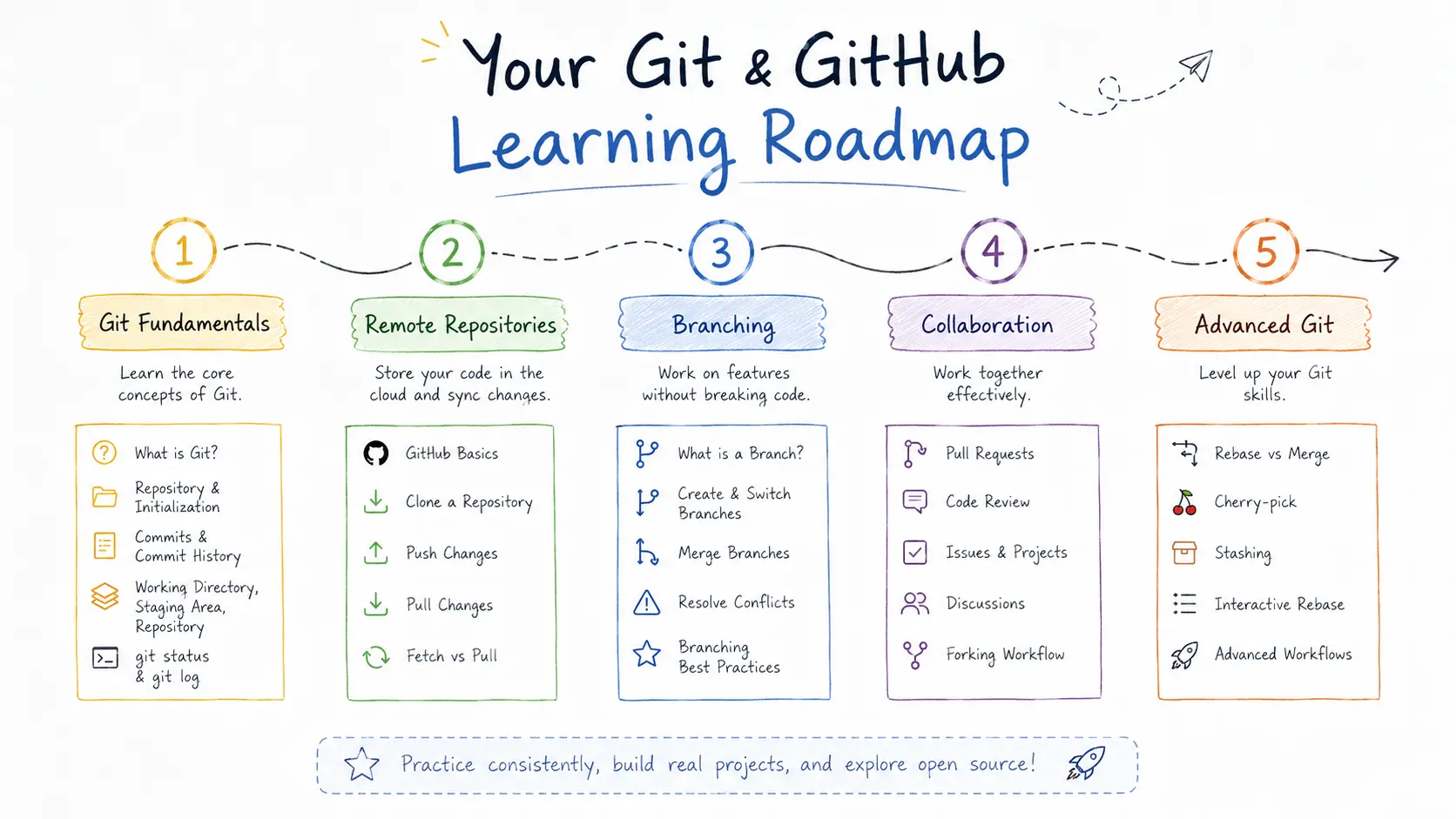
A Simple Git Learning Roadmap
If you're completely new to Git, don't try to memorize every command.
Follow this progression:
Level 1 - Fundamentals
Learn:
What version control is
What Git is
What GitHub is
Repositories
Commits
git statusgit addgit commit
Level 2 - Remote Development
Learn:
GitHub repositories
git cloneRemotes
git pushgit pull
Level 3 - Branching
Learn:
Branches
Feature branches
Switching branches
Merging
Merge conflicts
Level 4 - Collaboration
Learn:
Pull requests
Code reviews
Forks
Issues
Team workflows
Level 5 - Advanced Git
Once the fundamentals are comfortable, explore:
Rebasing
Stashing
Cherry-picking
Bisect
Git hooks
Git workflows
GitHub Actions
A structured progression like this mirrors the way beginner-oriented Git learning paths commonly move from cloning and commits into branching and collaboration.
Final Git Cheat Sheet
If you only remember a few commands when starting, remember these:
git status
git add .
git commit -m "Your message"
git pull
git push
git clone <url>
git switch -c feature-name
git merge branch-name
git log
Don't worry about memorizing everything immediately.
The goal is to understand the workflow first.
Edit → Stage → Commit → Push → Review → Merge
Once this cycle becomes familiar, Git becomes much easier to use.
Frequently Asked Questions
1. Is Git the same as GitHub?
No. Git is a distributed version control system, while GitHub is an online platform for hosting and collaborating on Git repositories.
2. Is Git difficult for beginners?
Git can seem confusing initially because it introduces new concepts and terminology. However, beginners can become productive by learning the basic workflow of status, staging, committing, branching, pushing, pulling, and merging.
3. Do I need GitHub to use Git?
No. Git can be used completely locally. GitHub is useful when you want remote repository hosting, collaboration, code review, and related development features.
4. What are the most important Git commands?
Start with:
git status
git add
git commit
git push
git pull
git clone
git branch
git switch
git merge
5. Should beginners learn Git from the command line?
The command line is worth learning because it provides direct access to Git's functionality. However, graphical interfaces and IDE integrations can also help beginners understand the workflow.
6. Why do developers use Git branches?
Branches allow developers to work on features, fixes, or experiments separately from the main development line. This makes it easier to isolate work and collaborate with a team.
7. What is a pull request?
A pull request is a proposal to incorporate changes from one branch into another. It provides a place for developers to review, discuss, and approve changes before they are merged.
Conclusion
Git and GitHub are fundamental tools for modern software development.
Git provides the version-control system that tracks your project's history, while GitHub adds online hosting and collaboration features around Git repositories.
For beginners, the most important concepts to learn first are:
Version control
Repositories
Commits
Staging
Branches
Merging
Remote repositories
Push and pull
Pull requests
Code collaboration
You don't need to master advanced Git commands on your first day.
Start with a small project. Create a repository. Make a few commits. Create a branch. Push it to GitHub. Open a pull request. Resolve a merge conflict.
The best way to learn Git is to use Git.
If you're building your development skills from the ground up, Git should become part of your workflow alongside HTML, CSS, JavaScript, React, backend development, databases, APIs, and deployment.
Ready to build real development skills? Explore Xcademia's practical technology and development programs and learn by building real-world projects.
Ready to go deeper?
Professional Training
Hands-on, mentor-led training aligned with industry certifications.
About the Author
Sharper every day
Daily tutorials, analysis, and career playbooks across all 12 Xcademia disciplines, straight to your inbox. No spam.